abc com Activate Sign in TV Provider
abc com Activate Sign in TV Provider
Launch the ABC app and select Account. In the Account menu, select TV Provider and click the Sign In button. Once you have a 7-character activation code, go to abc.com/activate .
When you log in using the account of a participating TV provider, you’ll have access to free on-demand programming, including the ABC live stream, restricted episodes, and more.
If you’re having trouble logging into your current TV provider, please choose the appropriate situation below for further information:-
How do I sign in to my TV provider to activate ABC.com?
To sign in to your TV provider, follow the steps below:-
Web Browser, Mobile, Fire TV, Fire TV Stick or Android TV.
-
-
- Launch the ABC app or visit abc.com and select Account.
- In the Account menu, select TV Provider.
- Under TV Provider, select Sign In.
- Select your TV Provider and sign in with your credentials
-
Apple TV, Roku or Smart TV
-
-
- Launch the ABC app and select Account.
- In the Account menu, select TV Provider and click the Sign In button.
- Once you have a 7-character activation code, go to abc.com/activate .
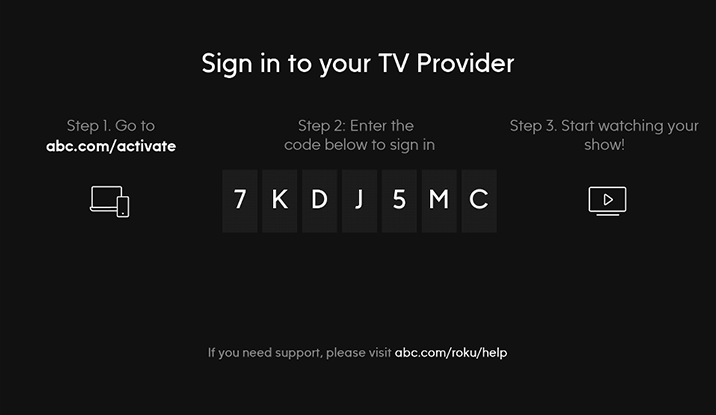
- Enter your activation code and click Continue.
- Select your TV Provider and sign in with your credentials.
-
Also Read : How To Activate Dialog TV Channel
I’m unable to sign in to my new TV provider
If you have a new TV provider and attempt to sign in from the ABC app, the sign in option defaults to your former TV provider.
This issue is resolved by signing out of your former TV provider from the TV provider settings on your device:
iOS/tvOS
-
-
- Go to Settings
- Scroll down and select TV Provider in the left column
- In the TV Provider section, scroll down and select Sign Out
- Select Sign Out again to confirm
- You can now sign in to your current TV provider
-
Amazon Fire TV/Fire TV Stick, Roku
For these devices, sign out of the TV provider from the ABC app:
-
-
- Go to Account
- Select TV Provider
- Select the Sign Out button, then select Sign Out again to confirm
- You can now sign in to your current TV provider
-
If you don’t see your device listed, please use these steps to sign out of your TV provider.
How do I sign out of my TV Provider?
Please note that if you sign out, you will have to repeat the activation process the next time you access the live stream and some on demand content.
On ABC.com
- Select “Account” in the top navigation
- Select option to “SIGN OUT” [TV provider]
- Confirm that you want to sign out by selecting “SIGN OUT”
On Mobile & Tablet
- Go to the “Account” section in the ABC app
- Select option for “Manage”
- On the TV provider screen, select the option to “SIGN OUT”
On a streaming device
- Go to the “Account” section in the ABC app
- Select option for TV provider.
- On the TV provider screen, select the option to “SIGN OUT”
How can I watch ABC for free?
ABC on YouTube TV
YouTube TV is another great option to watch ABC live. YouTubeTV offers live ABC with its streaming service in all markets in the US. Youtube TV supports Android, iOS, Apple TV, Fire TV, Chromecast, and more.
Can I watch ABC without a TV provider?
If your TV provider is not listed, you can still watch unlocked ABC.com and ABC App content on ABC.com. You can also watch ABC shows and specials with a Hulu subscription.
How can I stream ABC live?
Watch your favorite ABC shows as they air on TV with the live stream option on ABC.com and the ABC app when you sign in with your current TV provider. In addition to new, classic, and original ABC shows, you can also access the ABC News Live stream, a 24/7 news stream bringing you national ABC News coverage.
How do I contact ABC with a complaint?
- For questions and feedback related to ABC shows: 1-818-460-7477.
- For video playback and other technical issues: 1-800-230-0229.
How can I get local channels without cable?
- Purchase an HD antenna.
- Subscribe to the TV channel’s app.
- Live TV streaming app subscription.
- Live stream local news online on their website.
- Watch the clips on Youtube.
