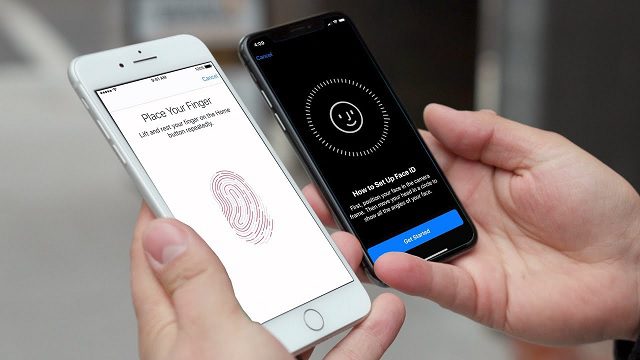
If your iPhone shows “Unable to Activate Touch ID on this iPhone”, that means the system can’t communicate properly with the fingerprint sensor hardware. The problem can be software, calibration, or (often) hardware related.
Here’s how to troubleshoot it safely:
🧭 Step-by-Step Fix Guide
1️⃣ Basic checks first
Clean the Home/Touch ID button — wipe with a soft, dry, lint-free cloth.
Make sure your finger is clean and dry.
Remove any screen protectors or cases that might slightly overlap the button.
Restart the iPhone:
Hold Power + Home (older models) or Power + Volume Down (newer models) until you see the Apple logo.
Then try setting up Touch ID again.
2️⃣ Software / Settings reset
If it still says Unable to activate Touch ID:
Go to Settings › Touch ID & Passcode › Turn Passcode Off, then restart the phone and turn it back on.
Try Settings › General › Transfer or Reset iPhone › Reset › Reset All Settings.
(This won’t erase your data, but you’ll need to re-enter Wi-Fi passwords.)Update iOS to the latest version:
Settings › General › Software Update.
Sometimes the Touch ID firmware reloads with the update.
3️⃣ Force-retrain Touch ID (if it lets you)
If Touch ID appears in Settings but can’t add new fingers:
Delete all saved fingerprints.
Restart the phone.
Add a new fingerprint.
If Touch ID doesn’t appear in Settings at all, jump to step 4.
4️⃣ Hardware or service issues
If you still see “Unable to activate Touch ID on this iPhone” and the Touch ID option is greyed out or missing:
The Touch ID sensor or the logic board connection might be damaged.
This happens after screen replacements done with non-genuine parts, because Touch ID is cryptographically paired with the phone’s logic board for security.
✅ Only Apple or an Apple-authorized repair center can replace or re-pair a Touch ID button. A third-party repair can replace the button, but you’ll lose Touch ID functionality permanently (the button will only work as “Home”).
5️⃣ What to do next
Run Diagnostics: open the Apple Support app → Device Diagnostics → run a test (or contact Apple Support directly).
Or book a Genius Bar / authorized service appointment.
They can tell if it’s a loose connector, water damage, or a failed Touch ID IC.
I’ve tried those steps, but it’s still not working.
If the previous steps didn’t resolve the issue, let’s explore a few more advanced troubleshooting options:
Reset Touch ID:
- Go to Settings > Touch ID & Passcode.
- Tap on the fingerprint you want to reset.
- Choose Delete Fingerprint and confirm.
- Restart your iPhone.
- Go back to Settings > Touch ID & Passcode and add a new fingerprint.
Check for Hardware Issues:
- Sometimes hardware issues can cause Touch ID problems.
- Inspect the Touch ID sensor for any visible damage or debris.
- If you suspect hardware issues, consider visiting an Apple Store or an authorized service provider.
Restore Your iPhone:
- Back up your iPhone using iCloud or iTunes.
- Go to Settings > General > Reset > Erase All Content and Settings.
- Set up your iPhone as new or restore from the backup.
Contact Apple Support:
- If none of the above steps work, it’s best to reach out to Apple Support directly.
- They can guide you through more specific troubleshooting steps based on your device and situation.
Remember that Touch ID relies on both hardware and software components, so a combination of these steps may help resolve the issue. 🍎🔍
