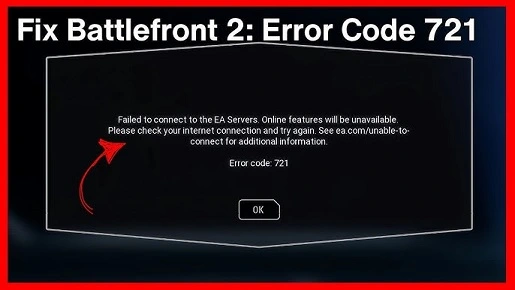
Experiencing Error Code 721 in Star Wars Battlefront 2 typically indicates a connection issue with the EA servers, often due to network settings or server-side problems.
Here’s a comprehensive guide to help you resolve this issue:
✅ Common Causes of Error Code 721
Server-side issues: EA servers may be down or undergoing maintenance.
Network configuration problems: Issues with your router settings or DNS configuration.
Account linking problems: Your EA and platform accounts might not be properly linked.
Also Read : How Long Does Steam Refund Take
🛠️ Step-by-Step Fixes
1. Check EA Server Status
Visit the EA Help Twitter or EA Help website to see if there are any ongoing server issues or maintenance announcements.
2. Verify Account Linking
For PS4:
Log in to your EA Account.
Navigate to Account Settings > Connections.
Ensure your PlayStation Network ID is linked.
For Xbox:
Log in to your EA Account.
Go to Account Settings > Connections.
Confirm your Xbox Live ID is connected.
3. Change DNS Settings
On Windows:
Open Control Panel > Network and Sharing Center > Change adapter settings.
Right-click your active network connection and select Properties.
Click on Internet Protocol Version 4 (TCP/IPv4) > Use the following DNS server addresses.
Enter:
Preferred DNS server:
8.8.8.8Alternate DNS server:
8.8.4.4
Click OK to save changes.
On PS4:
Go to Settings > Network > Set Up Internet Connection.
Choose Custom setup.
Set IP Address to Automatic, DHCP Host Name to Do Not Specify.
For DNS Settings, select Manual and enter:
Primary DNS:
8.8.8.8Secondary DNS:
8.8.4.4
Complete the setup and test the connection.
4. Disable UPnP on Your Router
Disabling Universal Plug and Play (UPnP) can sometimes resolve connectivity issues:
Access your router’s settings by typing
192.168.0.1or192.168.1.1into your web browser.Log in with your router’s credentials.
Navigate to the Advanced settings and find the UPnP section.
Disable UPnP and save the changes.
Restart your router and check if the issue persists.
5. Renew IP Configuration (Windows)
Open Command Prompt as Administrator.
Type
ipconfig /releaseand press Enter.Then type
ipconfig /renewand press Enter.Restart your computer and try connecting again.
6. Disable Cross-Play (Temporary Workaround)
Some users have reported that disabling Cross-Play temporarily resolves the issue:
Launch Star Wars Battlefront 2.
Navigate to Options > Gameplay.
Set Cross-Play to Off.
Attempt to connect to the game.
If successful, you can re-enable Cross-Play after logging in.
🧠 Additional Tips
Use a Wired Connection: If possible, connect your console or PC directly to the router using an Ethernet cable to ensure a stable connection.
Restart Your Router: Power cycle your router to refresh your network connection.
Reinstall the Game: If none of the above solutions work, consider reinstalling the game to ensure all files are intact.
