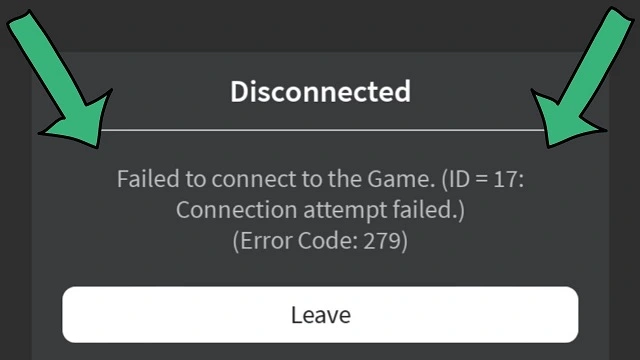
Roblox error code 279 is a frustrating connection error that prevents you from joining games. It usually means your device can’t establish a stable connection with Roblox’s servers.
Fix Roblox disconnected error code 279 failed to connect to the game id=17 connection attempt failed
Here’s a breakdown of why this happens and how to fix it:
Possible Causes:
• Poor internet connection: This is the most common culprit. Slow, unstable, or intermittent internet can disrupt the connection between your device and Roblox servers.
• Firewall or antivirus interference: Sometimes, your firewall or antivirus software might mistakenly block Roblox, preventing it from connecting.
• Browser issues: Outdated browsers, specific browser settings, or extensions can interfere with Roblox’s connection.
• Roblox server problems: Occasionally, the issue might be on Roblox’s end due to server maintenance or outages.
Also Read : Last Day of the Year 2024 Wishes
Troubleshooting Steps:
Check your internet connection:
- Run a speed test: Use a website like Speedtest.net to check your internet speed. Roblox recommends a minimum speed of 4-8 Mbps.
- Restart your router and modem: This can often resolve temporary connection glitches.
- Try a different network: If possible, switch to a different Wi-Fi network or use a wired Ethernet connection, which is generally more stable than Wi-Fi.
Check Roblox server status:
- Visit the official Roblox status page to see if there are any server issues or maintenance going on. If the servers are down, you’ll have to wait until they’re back online.
Adjust your firewall and antivirus:
- Temporarily disable your firewall or antivirus: See if this resolves the error. If it does, add Roblox to your firewall’s exceptions list so it’s not blocked in the future.
- Check your antivirus settings: Make sure your antivirus software isn’t interfering with Roblox’s connection.
Try a different browser:
- If you’re playing Roblox in a browser, try using a different one (like Chrome, Firefox, or Edge) to see if that resolves the issue.
Clear your browser cache and cookies:
- Outdated cached data can sometimes cause problems. Clearing your browser’s cache and cookies might help.
Update or reinstall Roblox:
- Make sure you have the latest version of Roblox installed. If you’re still having problems, try uninstalling and reinstalling Roblox.
Contact Roblox support:
- If none of the above solutions work, you can contact Roblox support for further assistance. They may be able to provide more specific troubleshooting steps or identify if there’s a problem on their end.
