Please Activate Developer Mode: Activating Developer Mode in Android or iOS Device
The process for activating developer mode differs depending on whether you’re using an Android or iOS device:
1. Android
Locate Build Number:
- Go to
Settings - Tap on
About PhoneorAbout Device - Find the
Build Number
- Go to
Tap Repeatedly:
- Tap the
Build Numberseven times in quick succession. You may see a message counting down the taps remaining.
- Tap the
Enter PIN/Password:
- If prompted, enter your device’s PIN, pattern, or password.
Developer Options Enabled:
- You’ll see a message like “You are now a developer!”.
- A new menu item called
Developer optionswill appear in your Settings, usually underSystemor at the bottom of the main Settings list.
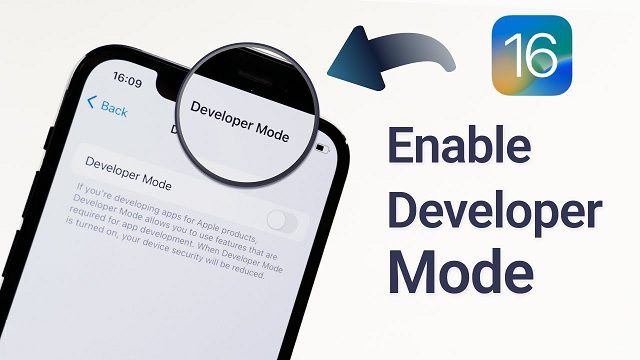
2. iOS
Make Sure Device is Updated:
- Ensure your iOS device is running iOS 16 or later.
- Go to
Settings>General>Software Updateto check.
Enable Developer Mode:
- Open
Settings. - Go to
Privacy & Security. - Scroll down and tap on
Developer Mode. - Toggle the switch to enable Developer Mode.
- Open
Restart Your Device:
- Follow the on-screen prompts to restart your device.
Important Notes:
Android: The exact location of the
Build Numbermight vary slightly depending on your device manufacturer and Android version. If you’re having trouble finding it, you can try searching within your Settings app or consult your device’s user manual or online support resources.iOS: Developer mode allows you to run apps directly from Xcode on your device, among other things. Be aware that enabling developer mode can potentially reduce the security of your device, so only enable it if you need it for development purposes.
