
To access your myCAMS account and manage your mutual fund investments, Go to mycams.camsonline.com. Enter Your Credentials. Once logged in, you can view your mutual fund portfolio, make transactions.
🔑 How to Login to myCAMS
-
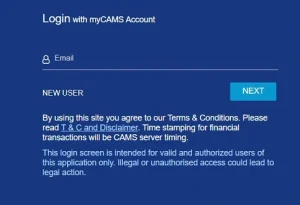
Visit the Official myCAMS Login Page: Go to mycams.camsonline.com.
-
Enter Your Credentials:
-
User ID: This is the email address registered with your mutual fund folios serviced by CAMS.
-
Password: Enter the password you set during registration.
-
-
Two-Factor Authentication (2FA):
-
For added security, myCAMS requires you to set up 2FA.
-
During your first login, you’ll be prompted to choose and answer five security questions.
-
Each time you log in, you’ll be asked to answer one of these questions to verify your identity.
-
-
Access Your Portfolio:
-
Once logged in, you can view your mutual fund portfolio, make transactions (such as purchases, redemptions, and switches), set up Systematic Investment Plans (SIPs), and more.
-
Also Read : Military Medical Assistance in Southern California
🆕 New to myCAMS? Here’s How to Register
If you haven’t registered yet, follow these steps:
-
Visit the myCAMS Registration Page: Go to mycams.camsonline.com.
-
Initiate Registration:
-
Click on ‘New User Registration’.
-
-
Enter Your Registered Email ID:
-
Provide the email address that is registered with your mutual fund folios serviced by CAMS.
-
Complete the CAPTCHA verification.
-
Click on ‘Submit’.
-
-
Confirmation and Login Credentials:
-
Upon successful registration, you’ll receive a confirmation email with your login credentials.
-
Use these credentials to log in for the first time.
-
-
Set Your Password:
-
During your initial login, you’ll be prompted to change your password.
-
Ensure your new password meets the specified security criteria.
-
-
Complete 2FA Setup:
-
As part of the registration process, you’ll need to set up two-factor authentication by selecting and answering five security questions.
-
📱 Accessing myCAMS on Mobile
For on-the-go access to your mutual fund investments:
-
Download the myCAMS Mobile App:
-
Android: Available on the Google Play Store.
-
iOS: Available on the App Store.
-
-
Login Using Your Credentials:
-
Use the same email ID and password you set during the registration process.
-
The mobile app supports biometric login (Fingerprint/Face ID) for added convenience.
-
🔄 Forgot Your Password?
If you’ve forgotten your password:
-
Go to the myCAMS Login Page: Visit mycams.camsonline.com.
-
Click on ‘Forgot Password?’:
-
Enter your registered email ID.
-
Complete the CAPTCHA verification.
-
Click on ‘Submit’.
-
-
Receive OTP:
-
You’ll receive a One-Time Password (OTP) via email or SMS.
-
Enter the OTP in the provided field.
-
-
Set a New Password:
-
Enter your new password and confirm it.
-
Ensure your new password meets the specified security criteria.
-
-
Login with New Credentials:
-
Use your email ID and the new password to log in.
-
