To access your myCAMS account and manage your mutual fund investments, Go to mycams.camsonline.com. Enter Your Credentials. Once logged in, you can view your mutual fund portfolio, make transactions.
🔑 How to Login to myCAMS
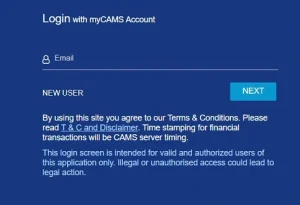
Visit the Official myCAMS Login Page: Go to mycams.camsonline.com.
Enter Your Credentials:
User ID: This is the email address registered with your mutual fund folios serviced by CAMS.
Password: Enter the password you set during registration.
Two-Factor Authentication (2FA):
For added security, myCAMS requires you to set up 2FA.
During your first login, you’ll be prompted to choose and answer five security questions.
Each time you log in, you’ll be asked to answer one of these questions to verify your identity.
Access Your Portfolio:
Once logged in, you can view your mutual fund portfolio, make transactions (such as purchases, redemptions, and switches), set up Systematic Investment Plans (SIPs), and more.
Also Read : Military Medical Assistance in Southern California
🆕 New to myCAMS? Here’s How to Register
If you haven’t registered yet, follow these steps:
Visit the myCAMS Registration Page: Go to mycams.camsonline.com.
Initiate Registration:
Click on ‘New User Registration’.
Enter Your Registered Email ID:
Provide the email address that is registered with your mutual fund folios serviced by CAMS.
Complete the CAPTCHA verification.
Click on ‘Submit’.
Confirmation and Login Credentials:
Upon successful registration, you’ll receive a confirmation email with your login credentials.
Use these credentials to log in for the first time.
Set Your Password:
During your initial login, you’ll be prompted to change your password.
Ensure your new password meets the specified security criteria.
Complete 2FA Setup:
As part of the registration process, you’ll need to set up two-factor authentication by selecting and answering five security questions.
📱 Accessing myCAMS on Mobile
For on-the-go access to your mutual fund investments:
Download the myCAMS Mobile App:
Android: Available on the Google Play Store.
iOS: Available on the App Store.
Login Using Your Credentials:
Use the same email ID and password you set during the registration process.
The mobile app supports biometric login (Fingerprint/Face ID) for added convenience.
🔄 Forgot Your Password?
If you’ve forgotten your password:
Go to the myCAMS Login Page: Visit mycams.camsonline.com.
Click on ‘Forgot Password?’:
Enter your registered email ID.
Complete the CAPTCHA verification.
Click on ‘Submit’.
Receive OTP:
You’ll receive a One-Time Password (OTP) via email or SMS.
Enter the OTP in the provided field.
Set a New Password:
Enter your new password and confirm it.
Ensure your new password meets the specified security criteria.
Login with New Credentials:
Use your email ID and the new password to log in.
