News Ticker
  • [ November 14, 2025 ] Joe Wicks Activate | Where to Watch activate
  • [ November 14, 2025 ] public.txdpsscheduler. com Appointment System USA
  • [ November 14, 2025 ] 02 4072 3226 | Is 02 4072 3226 reported as a Scam or Legitimate Service Australia
  • [ November 14, 2025 ] YouTube App Not Working | Easy Fix Error Fix
  • [ November 14, 2025 ] cambro.tv not Working | Check Current Global Outage Status Error Fix

Seminarsonly.com

Tech Support, Latest Games News, Finance

  • About
  • Contact Us
  • Disclaimer
  • Privacy Policy
News Ticker
  • [ November 14, 2025 ] Joe Wicks Activate | Where to Watch activate
  • [ November 14, 2025 ] public.txdpsscheduler. com Appointment System USA
  • [ November 14, 2025 ] 02 4072 3226 | Is 02 4072 3226 reported as a Scam or Legitimate Service Australia
  • [ November 14, 2025 ] YouTube App Not Working | Easy Fix Error Fix
  • [ November 14, 2025 ] cambro.tv not Working | Check Current Global Outage Status Error Fix
HomeLoginHow To Reset Apple ID Password

How To Reset Apple ID Password

July 17, 2024 Freddy Login Comments Off on How To Reset Apple ID Password

How To Reset Apple ID Password

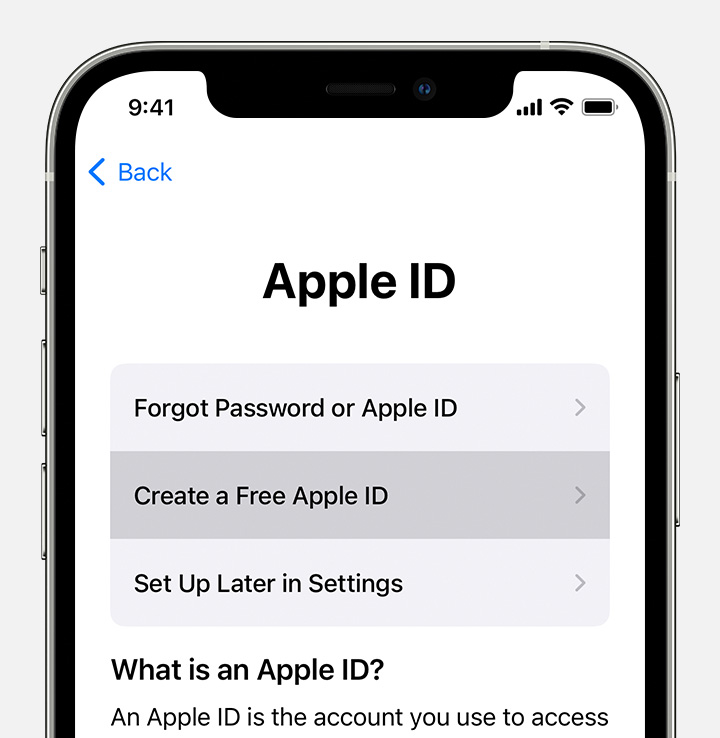
If you’ve forgotten your Apple ID password, here are some ways to reset it:

  1. On Your iPhone or Trusted Apple Device:

    • Go to Settings.
    • Tap your name > Sign-In & Security > Change Password.
    • Follow the onscreen instructions to reset your password.
  2. On a Trusted Mac:

    • Click the Apple icon at the top left.
    • Choose System Settings.
    • Click your Apple ID.
    • Select Sign-In & Security, then click Change Password.
  3. Using the Apple Support App on a Borrowed Device:

    • Download the Apple Support app (if needed).
    • Scroll down to Support Tools and tap Reset Password.
    • Choose A different Apple ID and follow the prompts.
  4. On the Web:

    • Visit iforgot.apple.com.
    • If possible, the browser will redirect you to a trusted device.
    • If not, follow the steps on the web to reset your password.

Remember to keep your new password secure! 🍎🔐
Also Read : How To Add Presto Card to Apple Wallet

How do I enable two-factor authentication for my Apple ID?

Two-factor authentication (2FA) is an essential security feature for your Apple ID. It adds an extra layer of protection to ensure that only you can access your account, even if someone else knows your password. Here’s how to enable it:

  1. On Your iPhone, iPad, or iPod Touch:
    • Open Settings.
    • Tap your name (Apple ID) at the top.
    • Select Password & Security.
    • Tap Turn On Two-Factor Authentication and follow the prompts.
  2. On Your Mac:
    • Click the Apple icon in the top-left corner.
    • Choose System Preferences > Apple ID.
    • Click Password & Security.
    • Next to Two-Factor Authentication, click Turn On and follow the instructions.
  3. On the Web:
    • Visit appleid.apple.com.
    • Sign in with your Apple ID.
    • Answer your security questions.
    • Tap Continue and follow the prompts to upgrade your account security.

Remember, two-factor authentication enhances your account’s security by requiring both your password and a verification code from your trusted devices.

Previous

empower-retirement.com Register Login Account

Next

Steps to Activate your new Destiny Card Online

Side Ads

LATEST POSTS

  • Joe Wicks Activate | Where to Watch
  • public.txdpsscheduler. com Appointment System
  • 02 4072 3226 | Is 02 4072 3226 reported as a Scam or Legitimate Service
  • YouTube App Not Working | Easy Fix
  • cambro.tv not Working | Check Current Global Outage Status
  • Webnovel Error Fix | Network Error / Failed to Load Page
  • Sabarimala Virtual Que Booking Available Date 2025 November
  • (833) 228-8482 | Which business or organization owns 1 833 228 8482
  • Bluepeak Outage Fix | How to check Bluepeak Service Status
  • Claude Code API Error | Steps to Diagnose and Fix

Copyright © 2025 | MH Magazine WordPress Theme by MH Themes