News Ticker
  • [ December 22, 2025 ] Error Code 232011 This Video File Cannot Be Played | Easy Fix Error Fix
  • [ December 21, 2025 ] cambro.tv not Working | Check Current Global Outage Status Error Fix
  • [ December 21, 2025 ] Amazon Age Verification Not Working | Most Common Fix Error Fix
  • [ December 21, 2025 ] Error Fix : Please Unblock challenges.cloudflare.com to Proceed Error Fix
  • [ December 21, 2025 ] Stone Disc Puzzle BG3 | The Quick Solution Games

Seminarsonly.com

Tech Support, Latest Games News, Finance

  • About
  • Contact Us
  • Disclaimer
  • Privacy Policy
News Ticker
  • [ December 22, 2025 ] Error Code 232011 This Video File Cannot Be Played | Easy Fix Error Fix
  • [ December 21, 2025 ] cambro.tv not Working | Check Current Global Outage Status Error Fix
  • [ December 21, 2025 ] Amazon Age Verification Not Working | Most Common Fix Error Fix
  • [ December 21, 2025 ] Error Fix : Please Unblock challenges.cloudflare.com to Proceed Error Fix
  • [ December 21, 2025 ] Stone Disc Puzzle BG3 | The Quick Solution Games
HomeLoginHow To Reset Apple ID Password

How To Reset Apple ID Password

July 17, 2024 Freddy Login Comments Off on How To Reset Apple ID Password

How To Reset Apple ID Password

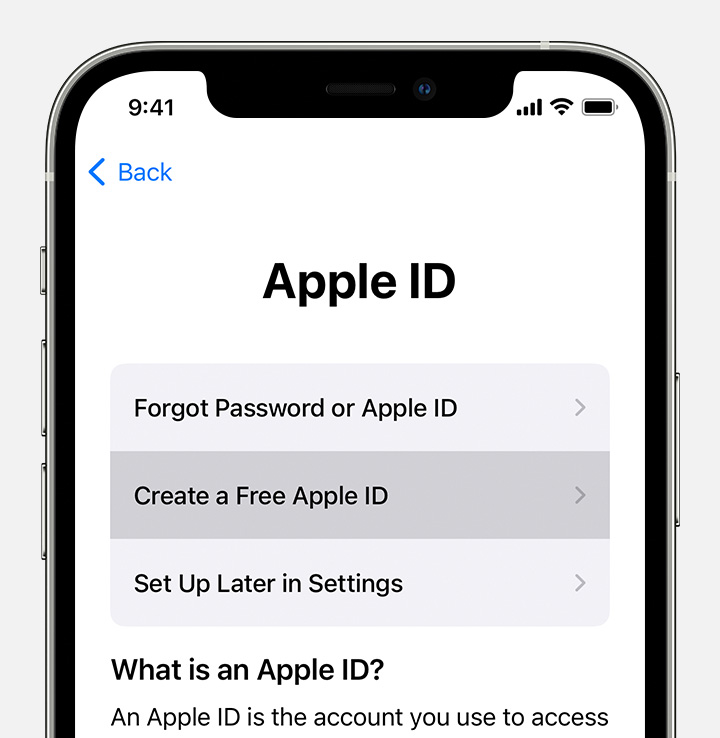
If you’ve forgotten your Apple ID password, here are some ways to reset it:

  1. On Your iPhone or Trusted Apple Device:

    • Go to Settings.
    • Tap your name > Sign-In & Security > Change Password.
    • Follow the onscreen instructions to reset your password.
  2. On a Trusted Mac:

    • Click the Apple icon at the top left.
    • Choose System Settings.
    • Click your Apple ID.
    • Select Sign-In & Security, then click Change Password.
  3. Using the Apple Support App on a Borrowed Device:

    • Download the Apple Support app (if needed).
    • Scroll down to Support Tools and tap Reset Password.
    • Choose A different Apple ID and follow the prompts.
  4. On the Web:

    • Visit iforgot.apple.com.
    • If possible, the browser will redirect you to a trusted device.
    • If not, follow the steps on the web to reset your password.

Remember to keep your new password secure! 🍎🔐
Also Read : How To Add Presto Card to Apple Wallet

How do I enable two-factor authentication for my Apple ID?

Two-factor authentication (2FA) is an essential security feature for your Apple ID. It adds an extra layer of protection to ensure that only you can access your account, even if someone else knows your password. Here’s how to enable it:

  1. On Your iPhone, iPad, or iPod Touch:
    • Open Settings.
    • Tap your name (Apple ID) at the top.
    • Select Password & Security.
    • Tap Turn On Two-Factor Authentication and follow the prompts.
  2. On Your Mac:
    • Click the Apple icon in the top-left corner.
    • Choose System Preferences > Apple ID.
    • Click Password & Security.
    • Next to Two-Factor Authentication, click Turn On and follow the instructions.
  3. On the Web:
    • Visit appleid.apple.com.
    • Sign in with your Apple ID.
    • Answer your security questions.
    • Tap Continue and follow the prompts to upgrade your account security.

Remember, two-factor authentication enhances your account’s security by requiring both your password and a verification code from your trusted devices.

Previous

empower-retirement.com Register Login Account

Next

Steps to Activate your new Destiny Card Online

Side Ads

LATEST POSTS

  • Error Code 232011 This Video File Cannot Be Played | Easy Fix
  • cambro.tv not Working | Check Current Global Outage Status
  • Amazon Age Verification Not Working | Most Common Fix
  • Error Fix : Please Unblock challenges.cloudflare.com to Proceed
  • Stone Disc Puzzle BG3 | The Quick Solution
  • University of Washington Acceptance Rate | Key Factors for Admission
  • Maxis Mobile Data Not Working | Major Outage
  • Can You Do The Casino Heist Solo GTA Online
  • Nintendo Servers Down | Official Status
  • Login Error Attestation Denied Twitter X Fixed

Copyright © 2025 | MH Magazine WordPress Theme by MH Themes