News Ticker
  • [ December 5, 2025 ] Fortnite Error Code ESP-DIST-001 PS5 | Steps to Fix Error Fix
  • [ December 5, 2025 ] 855 341 8184 | Auto claims State Farm Whois
  • [ December 5, 2025 ] Dexcom Follow App Not Working Error Fix
  • [ December 5, 2025 ] Epic Games Launcher 500 Internal Server Error | Fix Error Fix
  • [ December 5, 2025 ] Canva Server Down | Massive Global Cloudflare Outage Error Fix

Seminarsonly.com

Tech Support, Latest Games News, Finance

  • About
  • Contact Us
  • Disclaimer
  • Privacy Policy
News Ticker
  • [ December 5, 2025 ] Fortnite Error Code ESP-DIST-001 PS5 | Steps to Fix Error Fix
  • [ December 5, 2025 ] 855 341 8184 | Auto claims State Farm Whois
  • [ December 5, 2025 ] Dexcom Follow App Not Working Error Fix
  • [ December 5, 2025 ] Epic Games Launcher 500 Internal Server Error | Fix Error Fix
  • [ December 5, 2025 ] Canva Server Down | Massive Global Cloudflare Outage Error Fix
HomeLoginHow To Log Out of Netflix on TV

How To Log Out of Netflix on TV

September 6, 2024 Freddy Login Comments Off on How To Log Out of Netflix on TV

How To Log Out of Netflix on TV

To log out of Netflix on your Smart TV, Scroll through the menu options until you find “Sign Out” or “Log Out.” Select “Yes” or “Confirm.”

Here’s how to log out of Netflix on your TV:

General Steps (May vary slightly depending on your TV model)

1. Open the Netflix app: Turn on your TV and navigate to the Netflix app using your remote.

2. Access the menu: Once in the Netflix app, look for a menu option. This could be represented by three horizontal lines, a gear icon, or the word “Menu.” Use your remote to navigate to and select this option.

3. Find the “Sign Out” or “Log Out” option: Scroll through the menu options until you find “Sign Out” or “Log Out.” Select this option.

4. Confirm: You’ll likely be asked to confirm that you want to sign out. Select “Yes” or “Confirm.”
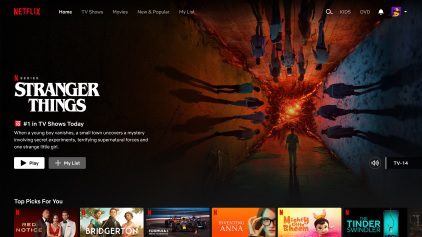
Netflix

Specific Instructions for some Smart TVs

Samsung TVs:

    • Go to the left side menu and scroll down to “Get Help.”
    • On the next screen, scroll to the bottom and select “Sign Out.”

LG TVs:

    • Press the “Settings” or gear icon on your remote.
    • Scroll down and select “Sign Out.”

If you can’t find the sign out option on your TV:

Sign out from the Netflix website:

    1. Go to Netflix.com on a computer or mobile device.
    2. Sign in to your account.
    3. Go to your “Account” settings.
    4. Under “Security & Privacy,” select “Manage access and devices.”
    5. Find the TV you want to sign out of and select “Sign Out.”

Additional Tips

  • If you’re concerned about someone else accessing your account, consider changing your Netflix password after signing out.
  • Remember to sign out of Netflix on all devices if you’re concerned about unauthorized access.
Previous

October 2024 Visa Bulletin USA

Next

Duplicate IRN Error in E Invoice | Issue Solved

Side Ads

LATEST POSTS

  • Fortnite Error Code ESP-DIST-001 PS5 | Steps to Fix
  • 855 341 8184 | Auto claims State Farm
  • Dexcom Follow App Not Working
  • Epic Games Launcher 500 Internal Server Error | Fix
  • Canva Server Down | Massive Global Cloudflare Outage
  • 500 Internal Server Error Cloudflare | How to Fix
  • CVE-2025-66478 | Next.js / React Server Components RCE
  • GCash App Maintenance Today
  • USCIS Login Account Not Working | USCIS Website Down
  • Failed To Receive Platform SIPT League of Legends

Copyright © 2025 | MH Magazine WordPress Theme by MH Themes