
cobralogin.wexhealth.com Login : Create COBRA Online Account
Complete the following steps:
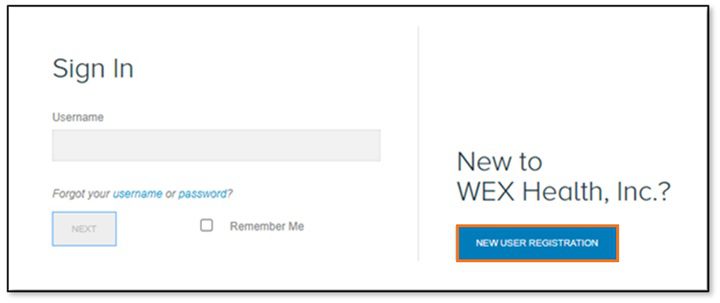
1. Navigate to cobralogin.wexhealth.com.
2. Click “NEW USER REGISTRATION.”
3. Provide the registration code as well as the primary qualified beneficiary’s (PQB’s) first and last name and social security number (SSN), and then click “SUBMIT REGISTRATION.”
Note: The registration code can be found on the page titled New Member Login Notice in the Specific Rights Notice (SRN). The Individual ID is not required.
4. After reviewing the user agreement, check the box to accept and then click “SUBMIT.”
5. Provide an email address and create a username and password, and then click “SUBMIT & CREATE ACCOUNT.”
Note: Email addresses with multiple periods in the domain (e.g., test@sample.account.com) are not accepted.
Note: The password must be between 8-50 characters and must include at least one number and one special character (! @ # $ % & *).
6. Log in to your account with the credentials you just created
7. Set up your security questions and click “SUBMIT ANSWERS.”
Note: You can select different questions from the drop-down list. Answers are not case sensitive.
8. Review the online election message and click “CONTINUE” to begin selecting coverage.
Note: You can choose to wait until later in the election period to select coverage by clicking “NOT NOW.”
How to elect coverage in your COBRA online account
To elect coverage in your COBRA online account, complete the following steps:
1. Read the welcome message and click “CONTINUE.”
2. Choose which plans and coverage levels to elect, and then click “ADD ELECTION.”
Note: If you choose to elect all plans, make sure to check the “Elect All” box in addition to the box for each individual plan. Also, only the boxes next to the dependents for whom you want to elect coverage should be checked for each plan. If the dependents you checked don’t correspond with the coverage level you selected for one or more plans, you’ll receive an error message and must make any necessary corrections before continuing.
3. Review your elections and click “CONFIRM AND ADD ELECTION.”
Note: If you need to make changes, click “CANCEL” instead.
4. Read and accept the user agreement, and then click “ADD ELECTION.”
5. Review the election confirmation page with details on selected plans. Click “PRINT” and/or “GO TO MEMBER PORTAL.”
Note: You’ll receive the following prompt if you exit before completing your election.
COBRA payment methods
Check or money order payment
Remit payment by check or money order made payable to WEX. Include your member ID number, available in your online account, on the memo line to ensure your payment is applied to the correct account.
One-time credit card, debit card, or ACH payment
Remit a one-time credit card, debit card, or ACH payment in your online account or via our automated phone system. A processing fee is charged per transaction, and you can only pay up to one month’s premium per transaction. If you need to pay premiums for more than one month at a time, you may want to pay via check, money order, or set up recurring payments to avoid multiple processing fees.
Note: Only cards issued by Mastercard, Visa, Discover, and American Express are accepted. You can also use a health savings account (HSA) benefits card.
Recurring ACH or credit card payment
You can either set up recurring payments in your online account, in the WEX COBRA + direct bill mobile app, or by completing the Recurring Automatic Payment (ACH) Request Form. We recommend setting up recurring payments online or in the COBRA + direct bill mobile app, as there is a monthly black-out period from the 26th of the current month through the 4th of the following month for form processing. There is no fee assessed for recurring payments. Most plans allow you to select the preferred date you’d like payments to pull. Monitor your account closely to ensure payments are pulling as intended.
Note: When using a credit card, recurring payments deactivate if a payment is owed for a prior month, the account is paid ahead, or the payment is declined. After the situation is resolved, you will need to complete the recurring payment setup steps again.
Auto bill pay
You may be able to remit payment using auto bill pay through your financial institution. Checks should be made payable to WEX, and you should include your member ID number during setup to ensure each payment is applied to the correct account. Financial institutions may show payments as processed before we actually receive them, so rely on your online account to verify when a payment has been applied.

