Apple Car Play Not Working : If CarPlay doesn’t work like you expect, learn what to do
If the Apple Car Play is not working, then make sure that your country or region supports CarPlay and that your car supports CarPlay. If you’re unsure if your car supports CarPlay, contact the vehicle manufacturer.
What is CarPlay?
CarPlay is a smarter and safer way to use iPhone in your car, enabling you to stay focused on the road. When you connect your iPhone to CarPlay, you can get turn-by-turn directions, make calls, send and receive messages, listen to music and more.
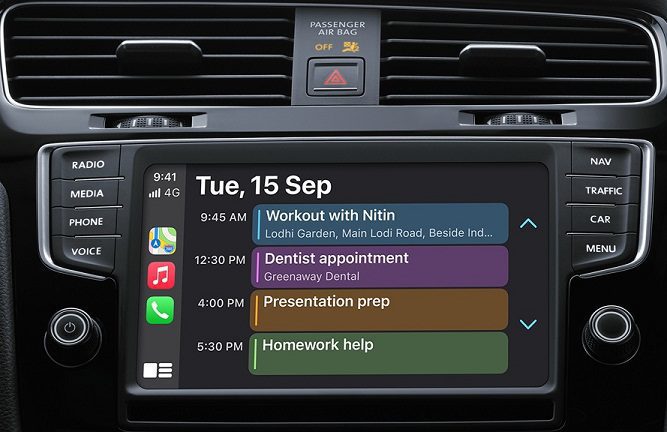
With iOS 13 and later, the CarPlay Dashboard brings a simpler view of the road ahead. The dashboard gives you a single place to keep track of Maps, audio controls and Siri Suggestions, which provide easy access to things such as your Calendar events. You can even use the dashboard to take control of your HomeKit accessories, such as door openers.
The power and simplicity of Apple Maps is available in your car. CarPlay can predict where you’re going using addresses from your email, text messages, contacts and calendars. And now with a more detailed map, turn‑by‑turn spoken directions and immersive 3D experiences, it’s easier than ever to get where you need to go. One‑tap access to your go‑to and must‑see destinations also helps you find more to see and do when you get there — whether you’re searching for points of interest, driving to a favourite restaurant or looking for nearby petrol pumps.
Also Read : Apple Wallet MagSafe
CarPlay with Siri voice control and is specially designed for driving scenarios. CarPlay also works with your car’s controls — knobs, buttons, touchpad or touchscreen. And the apps themselves have been reimagined for the car, so you can use them while your eyes and hands stay where they belong.
CarPlay supports other apps on your iPhone — like your favourite audio, messaging and voice apps, along with apps in new categories, like third-party parking and quick food-ordering apps. Apps developed by car manufacturers are also supported, so you can control more of your car’s features without ever leaving CarPlay.
If you need help with CarPlay
If CarPlay doesn’t work like you expect, learn what to do.
First, make sure that your country or region supports CarPlay and that your car supports CarPlay. If you’re unsure if your car supports CarPlay, contact the vehicle manufacturer.
Make sure that your iPhone has the latest version of iOS. If your iPhone is updated to the latest version of iOS, follow these steps — checking CarPlay after each step:
- Check your connection to your CarPlay stereo:
- If you have a wired connection, try connecting again with a different USB cable to a different USB port if you have one.
- If you have a wireless connection, make sure that Wi-Fi and Bluetooth are enabled under Settings > Wi-Fi and Settings > Bluetooth.
- If CarPlay doesn’t activate automatically, look for the CarPlay logo on your car’s display.
- Restart your iPhone and your car
- Make sure that Siri is on
- If your iPhone isn’t detected by CarPlay, make sure that CarPlay isn’t restricted. Go to Settings > Screen Time > Content & Privacy Restrictions, tap Allowed Apps and make sure that CarPlay is enabled
- Go to Settings > General > CarPlay, tap your car, then tap Forget This Car. Then set up CarPlay again.
- Make sure that your CarPlay stereo is using the latest firmware from the car manufacturer. Check your car’s manual for more information.
Set up CarPlay
- Start your car and then make sure Siri is turned on.
- Connect your iPhone to your car:
- If your car supports CarPlay with a USB cable, plug in your iPhone using the car’s USB port. The USB port may be labelled with a CarPlay icon or a smartphone icon.
- If your car supports CarPlay both wirelessly and with a USB cable, plug in your iPhone to the car’s USB port. You’ll receive an alert on your iPhone that will offer to connect you wirelessly during your next drives.
- If your car only supports wireless CarPlay, press and hold the voice command button on your steering wheel. Make sure your stereo is in wireless or Bluetooth mode. Then on your iPhone, go to Settings > General > CarPlay and select your car. Check the manual that came with your car for more information.
Set up your Apple TV 4K for the best 4K, HDR, or Dolby Vision experience

Use Siri to control CarPlay
Depending on your car, there are two ways you can use Siri to control CarPlay:
- Press and hold the voice command button on your steering wheel. Then ask Siri a question or to do something.
- Touch and hold the CarPlay Dashboard or CarPlay Home button on your touchscreen. Then ask Siri a question or to do something.
Siri will also make suggestions in CarPlay about what you may want to do next, such as drive to your next meeting. Siri Suggestions and CarPlay work seamlessly to keep your favourite apps at your fingertips.
If you have HomeKit-enabled accessories, such as a garage door opener, you can use the Siri Suggestions that will appear on the CarPlay Dashboard, or you can simply ask Siri to do things for you, such as “Open the garage door” when you’re close to your house.
How to Activate New iPhone At&T: How to Set up your iPhone, iPad or iPod touch
Let Siri announce messages
With iOS 15, Siri can announce your incoming messages in your car. When this feature is turned on, Siri will play a tone, then announce the sender’s name and read the message. If it’s a long message, Siri will announce the sender’s name and only say they’ve sent you a message. You can ask Siri to read the full message.
To turn on Announce Messages from your iPhone:
- Open the Settings app, then tap Notifications.
- Tap Announce Notifications.
- Tap CarPlay, then turn on Announce Messages. From here, you can also change when you want announcements to start.
- Tap Back to manage which messages Siri will read. Tap Messages, and then select either Time Sensitive and Direct Messages or All Notifications.
To turn on Announce Messages from your car’s display:
- Open the Settings app in CarPlay, then select Announce Messages.
- Turn on Announce Messages.
- Before you start driving, select Announce Options to choose whether messages you receive will be spoken aloud or not.
