When you go to aka.ms/myrecoverykey, it redirects you to the Microsoft Account page where you can:
Log in with the Microsoft account tied to your device.
View the BitLocker recovery keys for any devices associated with that account.
What is a BitLocker recovery key?
BitLocker is a Windows encryption feature that helps protect your data. If Windows detects a change (like hardware modification or an unauthorized access attempt), it may require a 48-digit recovery key to unlock the drive.
How to Locate the BitLocker Recovery Key in Your Microsoft Account
Accessing the Microsoft Account recovery keys
- Open a web browser and go to https://account.microsoft.com/account.
- Click Sign in and then enter the email address of your MSA.
- Scroll down to Devices and then click View details for the device requesting the recovery key.
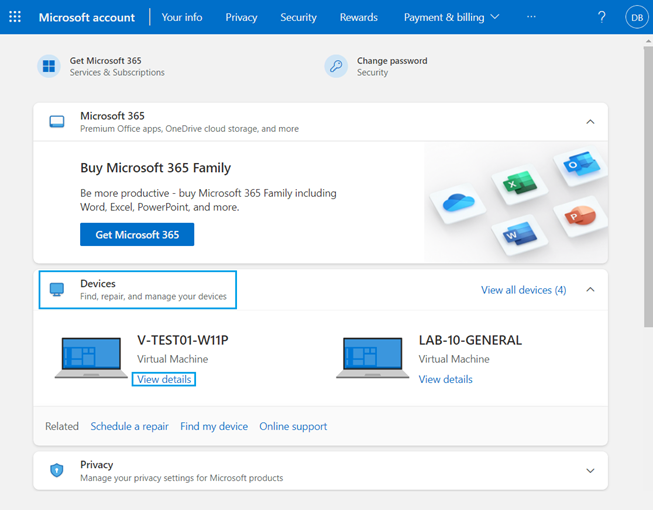
- Click Manage recovery keys.
Selecting the Recovery Key
The BitLocker recovery screen shows you which recovery key is required.
This is important when you have multiple computers, or your computer has multiple encrypted drives.
Reference the Key ID from the BitLocker recovery event screen to locate the appropriate recovery key.
Enter the recovery key from the BitLocker recovery keys screen and then press Enter. The computer continues booting to the Windows desktop.
You’ll need to access this page if:
Your computer is asking for a BitLocker recovery key and won’t boot without it.
You forgot to save or print the recovery key when BitLocker was enabled.
Tips:
Try logging in with any Microsoft account you’ve used on that PC.
If you’re on a work/school device, your IT admin might hold the key.
If you saved the key manually (e.g., USB drive, printout, file), check those backups.

Be the first to comment